How to fix brightness and lock focus on your phone camera
Free lesson 3 of the Knackly Phone Photography course. Works for iPhone, Samsung Galaxy, Google Pixel and any Android phone.
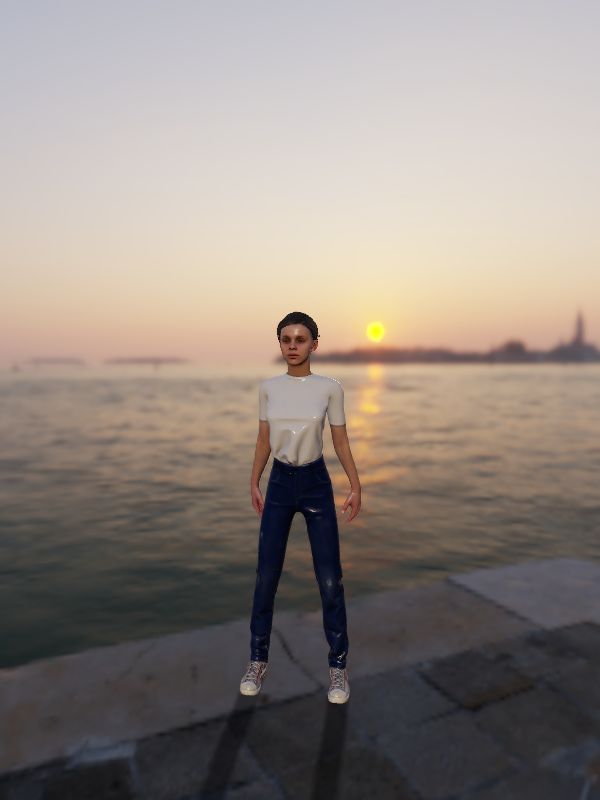
Practise it on a real camera screen
A 3D scene with real light. Tap, drag and shoot, and Knackly checks your photo instantly.
Why your phone gets brightness wrong
Your phone sets the brightness by looking at the whole scene. With the sun or a bright window behind someone, it usually gets it wrong: either the face goes dark, or, if it brightens the face, the sky turns pure white.
Step 1: Tap to set the brightness
When you tap a spot, most phones set the brightness for that spot as well as the focus. Tap a face in front of a sunset and the face gets brighter, but the sky may turn white.
Step 2: Drag to adjust it
After tapping, a small sun icon or slider appears. Drag it (or drag up and down on the screen) to make the photo darker or brighter. In a sunset scene, bring it down until the sky keeps its colour while the face is still visible.
Step 3: Lock it
AE/AF lock means auto exposure / auto focus lock. Touch and hold your subject until the lock label or icon appears. Now focus and brightness stay put, even if you move a little or someone walks past. Tap anywhere to unlock.
Why a white sky is worse than a dark face
When part of a photo turns pure white, the colour there is simply gone and no editing can bring it back. A slightly dark face still holds its detail, and you can brighten it later in editing (the shadows slider). So when you can't keep both, protect the bright parts.
Most phones also have an automatic HDR feature that blends several exposures to help with this. It improves things a lot, but in very bright backlight you'll still get better results by adjusting brightness yourself.
Do it on your phone
On iPhone
- Tap the face. The yellow focus square appears with a small sun next to it.
- Drag your finger up or down anywhere on the screen: the sun moves and the photo gets brighter or darker.
- To lock, touch and hold until AE/AF LOCK appears at the top. Tap anywhere to unlock.
On Samsung Galaxy
- Tap the face. A focus circle appears with a brightness slider (sun icon) next to it.
- Drag the slider to make the photo brighter or darker.
- To lock, touch and hold the face until the lock label (AE/AF lock) appears.
On Google Pixel
- Tap the face. A focus circle and sliders appear on the screen.
- Drag the brightness (sun) slider to make the photo brighter or darker.
- To lock, touch and hold the face until a lock icon appears (on most recent Pixel models).
On Other Android
- Tap the face to focus. Look for a sun icon or slider near the spot you tapped.
- Drag it up or down (or left and right) to change the brightness.
- In most camera apps, touching and holding locks focus and brightness. Look for a lock icon or "AE/AF lock".
Buttons and menu names can differ a little between models and software versions.
Related lessons: Your phone camera app, button by button · How to tap to focus, and stop blurry phone photos
Common mistakes
- Tapping a dark subject and accepting a white, blown-out sky.
- Adjusting brightness, then moving the phone so it resets. Lock it first.
- Making the whole photo too dark trying to save a tiny bright spot like the sun itself.
- Forgetting to tap again to unlock afterwards.
Questions people ask
What does AE/AF lock mean?
Auto Exposure / Auto Focus lock. It keeps the brightness (exposure) and focus fixed where you set them, even if the scene changes slightly.
Why is the sky white in my phone photos?
The phone made the photo bright enough for a darker part of the scene, like a face or the ground, and the much brighter sky went past pure white. Tap the subject, then drag the brightness down until the sky has colour.
Why is the face dark when someone stands in front of a window or sunset?
The bright background tricks the phone into making the whole photo darker. Tap the face to brighten it, then balance it with the brightness slider, or move so the light falls on the face instead.
Can I brighten a dark photo later?
Yes. Dark areas usually keep detail and can be lifted with the shadows or brightness slider in editing. Pure white areas cannot be recovered.